
Spotify Artificial Streaming: Protect Your Music and Keep Growing
Spotify artificial streaming can affect a track that’s also earning real fans. The same song can get plays from an ad campaign, returning listeners, and a suspect playlist.
The decision behind the warning
Find which activity was flagged before changing the campaign. Stop the wrong campaign and you can cut off real growth while the suspect source keeps running.
Narrow the issue to a track, time window, and source. Send your distributor the records for that period and ask what happens next.
What You’ll Learn
- How to separate a traffic problem from reports that don’t match
- How to find the source behind a sudden jump in streams
- Why real fan growth can appear alongside flagged streams
- Which evidence supports a review, and which claims it cannot prove
- When to pause a source, escalate a case, or keep a campaign under review
- What to check before a reupload puts your release history at risk
- How to use saves and repeat listens to choose your next audience, song, and budget
What counts as Spotify artificial streaming?
Spotify defines artificial streams as plays that lack real listening intent. This includes bots, scripts, and efforts to inflate counts through forced or coordinated listening. Its official artificial streaming guide also covers cases where music receives bot streams without the artist’s consent.
For paid promotion, trace the listener’s path. An ad puts your music in front of someone; that person chooses whether to open Spotify and listen.
Then ask why that audience saw that song. Genre and similar artists give you a starting point. Saves, follows, and repeat listening help you decide what to test next.
Ask three separate questions:
- What happened to the streams? A track may have both real and artificial activity.
- What did you arrange? Your campaign records show what you booked, when, and through whom.
- What action is being taken? A count correction, fee, and takedown are different outcomes.
Fans may love the song, but you cannot use their messages to account for every stream in a flagged period. You also can’t identify the source from a flag alone.
Define the exact case before you diagnose it
Ask for the ISRC, release UPC, affected dates, and type of action. Ask what any percentage measures: which track, which month, and which total.
A rate for one song and month does not describe the rest of your catalog or your lifetime audience. Match your records to the period in the notice.
Keep three views separate
Spotify explains these differences in its royalties guide. It filters some artificial streams before they reach Spotify for Artists. Others can remain in private charts after Spotify adjusts public counts and payouts.
| View | What to use it for |
|---|---|
| Public track and monthly listener counts | Record a visible count change. Don’t treat the difference as a complete fraud report. |
| Spotify for Artists | Trace the song, dates, sources, and markets you can see. Some flagged activity may already be absent. |
| Distributor notice and royalty statement | Identify the reported case, any charges, and the payment periods affected. |
Check dates and update times before you compare totals. If they don’t match, don’t count the gap as bot streams. A clean-looking dashboard also doesn’t cancel out a notice.
Keep two dates in your case file: when the activity happened and when you received the warning. Match your campaign records to the first one. Use the second to track your response.
If you’re getting fewer new plays, with no flag or count correction, use the algorithmic streams drop guide. For a falling audience count, check the monthly listener window.
Trace suspicious streams to the source that changed
In Spotify’s source of streams view, compare the same song and country across equal time windows. An older track with steady traffic is easier to compare than a single in its first week.
Keep this analysis in streams. One listener can appear in several source groups. Adding those listener totals can count the same person twice.
A source breakdown that changes the decision
These are sample figures, not customer data. Assume an established track with no new release during either seven-day window.
| Grouped stream source | Before | During the spike | Change |
|---|---|---|---|
| Active sources | 10,000 | 11,000 | +1,000 |
| Spotify editorial and personalized sources | 6,000 | 7,000 | +1,000 |
| Other listeners’ playlists | 2,000 | 24,000 | +22,000 |
| Total | 18,000 | 42,000 | +24,000 |
Here, active sources include the artist profile and catalog, listeners’ own playlists and libraries, and their queues.
Total streams rose by 133%. But 22,000 of the 24,000 added plays came from other listeners’ playlists. That is about 92% of the increase.
Focus on which playlists changed, on which days, and whether your team arranged those adds.
Watch the denominator. Those playlists account for 24,000 of 42,000 current streams, or 57%. Their added plays account for 92% of the increase. Neither number is a fraud rate. Use them to choose where to look, not to label plays as fake.
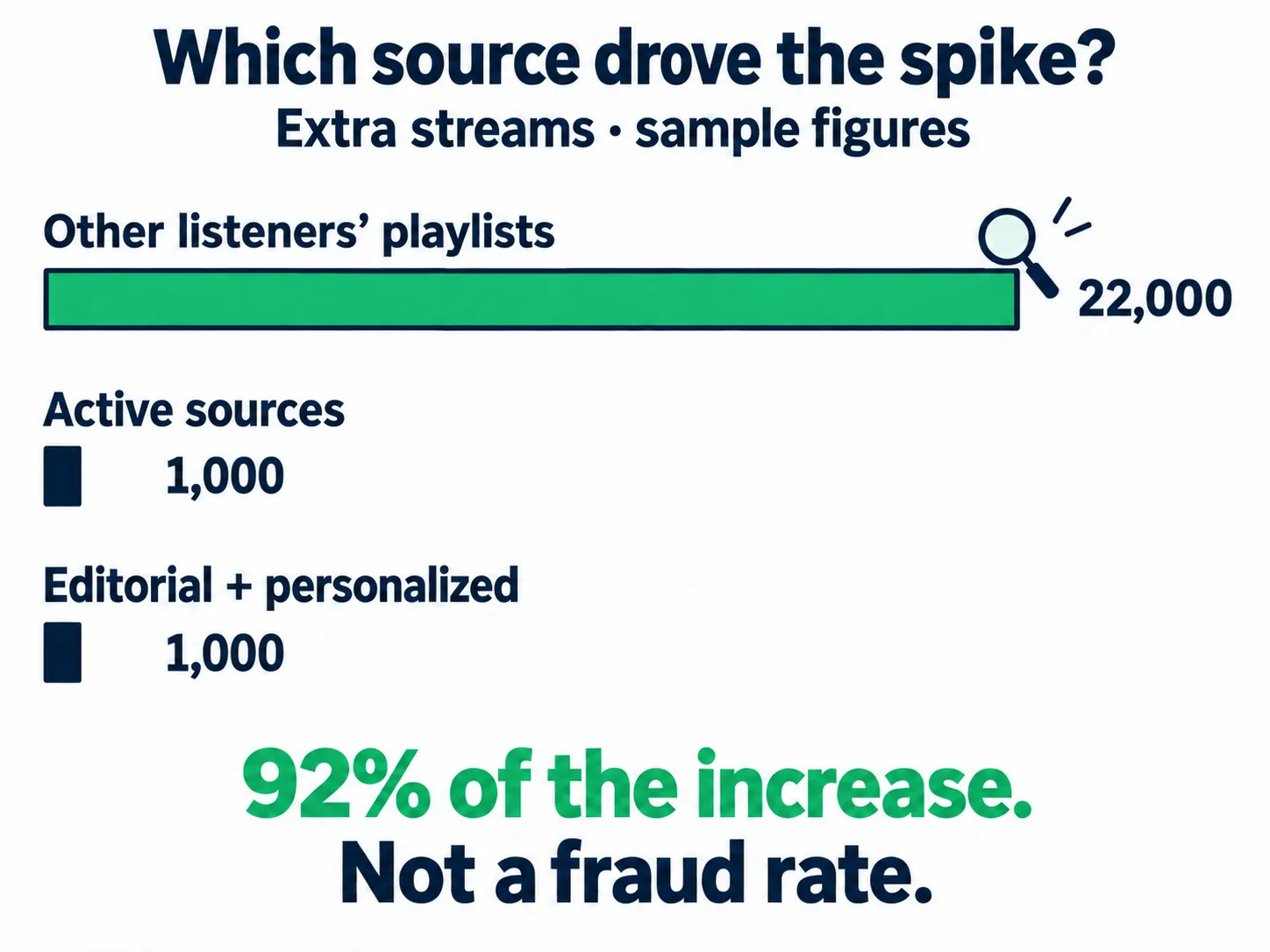
Sample figures for two equal seven-day windows. Bars compare added streams.
Suppose your ads ran in the same markets at the same spend. Timing alone cannot tie the playlist plays to those ads or rule out problems elsewhere in the campaign.
Key takeaway
Start with the source that accounts for most of the increase. Then compare what you find with the track and dates in the notice.
Check whether the change follows a song or a campaign
Compare the flagged song with the rest of the catalog over the same dates.
If one track spikes on an unknown playlist while the others hold steady, focus there first. If several promoted tracks move together, compare their campaign dates and markets.
Ask whether the audience mix, songs in rotation, or budget changed. If your team or ad system moved budget toward a track with stronger listener response, that song may now lead your stats. Put that change on the timeline before judging the jump.
If the campaign covers your full catalog, those other songs were also promoted. You can compare their patterns, but they don’t show what would have happened without the campaign. Release age, creator posts, and playlist adds can also make two songs behave differently.
Check that two charts describe the same traffic
A rise in streams from one country and a rise from one playlist may happen together. That alone doesn’t prove the country’s streams came from that playlist.
If the filters are available, apply the same country and dates to the affected song. If you cannot see the overlap, keep the findings separate in your report.
Use complete reporting days. Spotify records stats in UTC and updates them daily. Record your ad account’s time zone too. A late-night launch could explain what looks like a next-day spike.
Watch what a larger total does to your ratios
More playlist streams can lower the track’s save ratio. Its existing fans may still behave the same way.
For the same two windows, say the song gets 900 saves in each. That’s 5% against 18,000 streams, then about 2.1% against 42,000. Here, the ratio is saves divided by streams.
Plays grew faster than saves. That alone doesn’t prove bot activity. Compare the source change with your Spotify saves over the same dates.
Decide what to pause, report, or keep under review
| What you know | What to do next |
|---|---|
| Growth matches a documented campaign; no notice or unexplained source | Keep tracking the campaign and song together. A spike alone isn’t a reason to stop it. |
| A new playlist or source drives most of an unexplained jump | Report the suspect source. If you control it, hold further spend or delivery while it is checked. |
| A formal warning, fee, or takedown names your music | Follow the notice’s instructions. Ask your distributor for the case details and review route. |
| Suspect activity continues after a provider says delivery stopped | Send the stop time and later data to support. The continuing activity still needs an explanation. |
Pause the part you can link to the problem. An unwanted playlist can keep playing your music after you stop an unrelated ad campaign. Hold off on more spend where the source is unclear.
If you change several campaigns at once, log each stop time. You lose some ability to tell which change mattered.
A drop after a pause is a clue, not proof of cause. A playlist may have ended on its own. Don’t restart a suspect source to test whether the pattern returns.
Build a review case around the claim being made
Lead with a one-page summary of the flagged track, dates, source change, and action you’re asking support to review. Attach the records that support it.
Match the evidence to the question
| Evidence | What it supports | What it cannot settle alone |
|---|---|---|
| A notice with ISRCs and dates | Which music and period were flagged | Who caused the activity |
| Song-level exports and dated screenshots | How the visible counts and sources changed | The full set of streams Spotify filtered |
| Ad reports, receipts, creative, and target markets | Which promotion ran during the period | That each click became a stream, or every stream came from those ads |
| A playlist URL, history, and report receipt | Which list you found and when you raised it | Whether Spotify will remove a fee or reverse a decision |
Use fan response and press coverage to explain demand, not to identify the source of a specific block of plays.
Use Spotify’s CSV exports where available. Save screenshots for views you cannot export, with the song, dates, and filters visible.
Keep the first files alongside later versions. If the data changes, show both versions and when you captured them.
Include a timeline that tests your explanation
List the campaign launch, playlist appearance, first unusual day, warning date, and any stop or report times. Add anything booked by your label or artist team. Log a YouTube promotion launch or creator post separately, even if it features the same track.
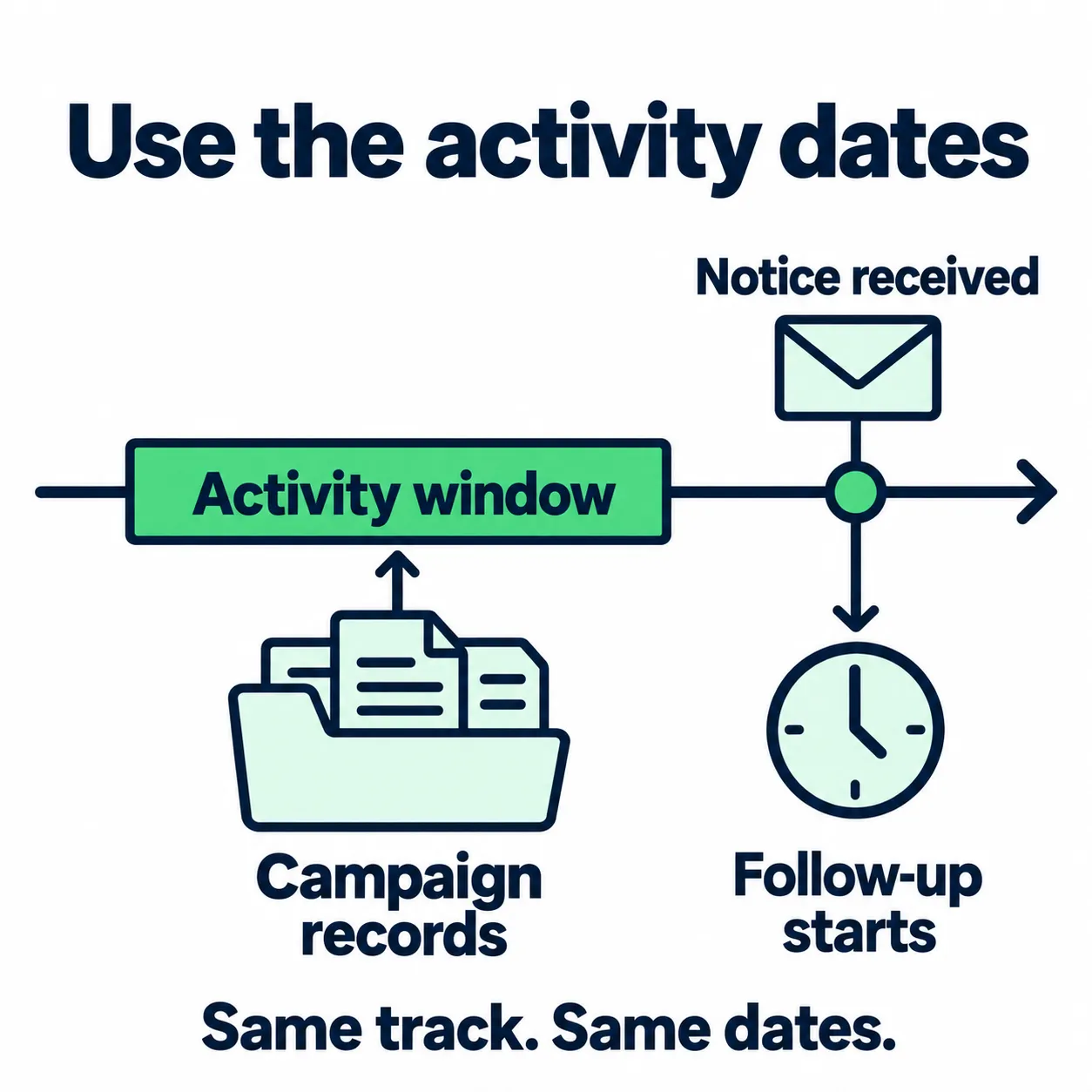
Use the notice to identify the track and activity window, then match your records to that period.
If you say a creator caused the spike, did the post go live before it began? Does that creator’s audience fit the markets that changed? If not, say so.
Request a specific review
Send this to your distributor’s support team:
Subject: Review request: [ISRC / release UPC / affected period]
Please confirm which tracks and dates are covered by [notice or case ID]. Does the reported percentage refer to this track and period, or another set of streams?
My song-level data shows [source change] during [UTC dates]. The promotion running then was [method, provider, markets, and dates]. I’ve attached the source exports, campaign records, and a timeline.
The unexplained activity is [specific source or event]. I [action taken] on [date and time]. I still cannot confirm [unresolved question].
Can you submit these records for review? Please confirm whether the fee, restriction, or removal was requested by Spotify or applied under your own policy. What can be reviewed, and what action do you need from me?
If support replies with a policy link, ask for a decision: “Can you submit these records for review of this ISRC and period? If not, what is the next step?”
Ask for a case reference and the expected reply window.
Report bot playlists even when your data is incomplete
Use Spotify’s playlist reporter for a suspect playlist containing your music. Give your distributor the same URL and evidence, plus any report receipt.
Spotify can investigate the playlist. Your distributor handles its own release and account process, including any request it sends to Spotify.
A playlist may disappear before the warning arrives. Spotify’s playlist reporting view shows only the top 100 playlists. A list needs at least three listeners to appear.
If the URL is missing, send the saved name, screenshots, song details, and dates to your distributor. State what is missing. Don’t substitute a different list with the same name.
Save the data behind any outside fake-stream checker’s rating, such as playlist history. Don’t treat the score as Spotify’s finding or an appeal decision.
Separate Spotify penalties from distributor action
Spotify’s artificial streaming policy describes count corrections, withheld royalties, and possible playlist or track removal. Labels and distributors can also act on the reports they receive.
Spotify charges labels and distributors per track when it finds very high rates of artificial streaming. Ask your distributor which charges and review options apply to your case. Don’t assume you’ll pay the fee another artist mentions online.
Ask for three separate answers:
- The finding: affected ISRCs, dates, and any reported rate or count.
- The action: fee, royalty adjustment, delivery restriction, or removal, and who applied it.
- The remedy: what evidence can be reviewed, who submits it, and whether re-delivery is allowed.
Check any charge against the song, month, currency, and contract term cited. A fee and withheld earnings are separate amounts. Record both, rather than treating a lower payout as the fee itself.
Use your royalty statement to check the payment. The Spotify royalties calculator estimates earnings; it can’t verify which plays Spotify paid for.
Protect release history before an approved reupload
Check the recording, metadata, play history, and live links before a reupload.
Get your distributor’s instructions for this case. Track-linking is not an appeal. Spotify explains how matching audio and metadata can preserve play counts in its reupload guidance.
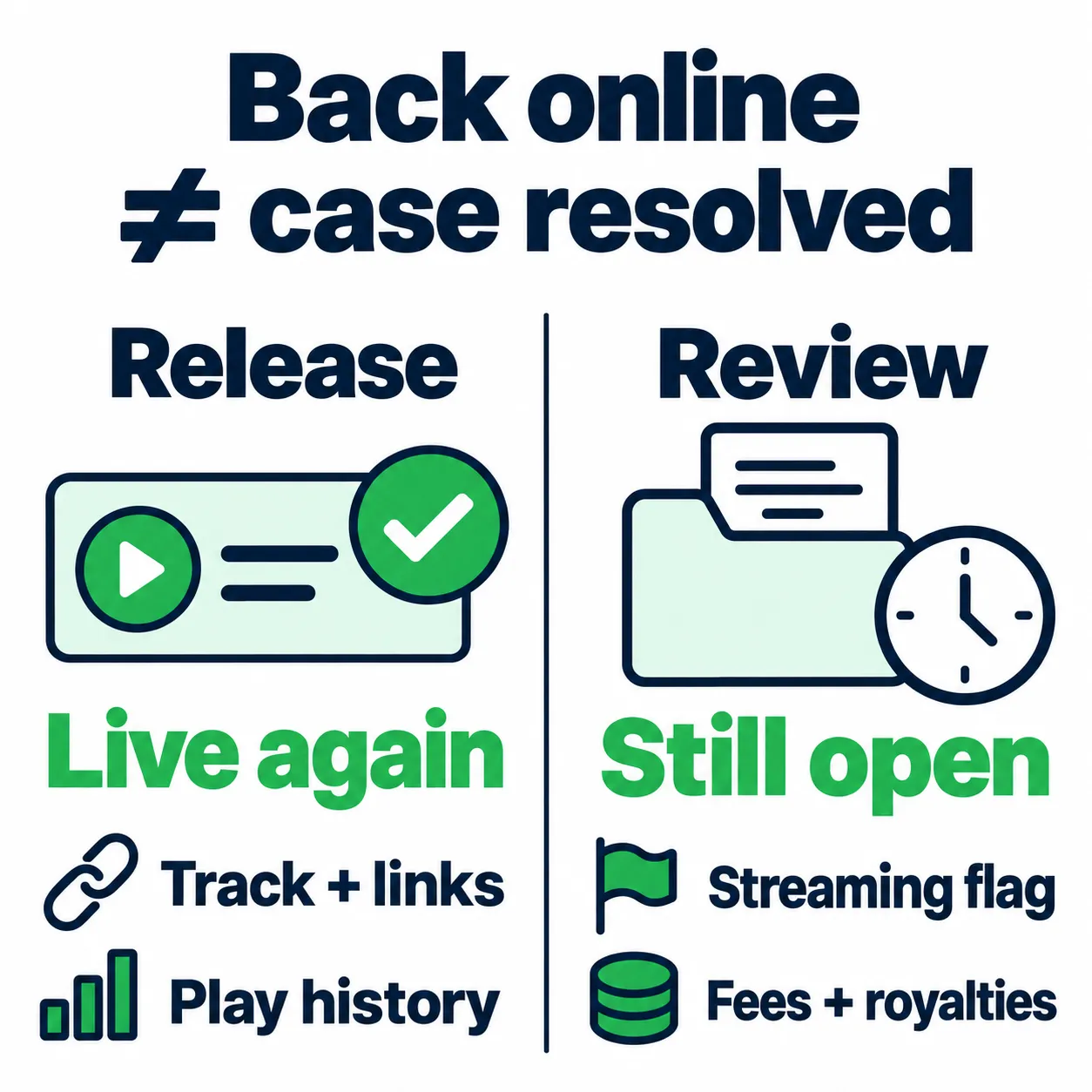
Restoring the release and resolving the flag or fees require separate checks.
Before re-delivery, add these checks to your launch playbook and have the person handling distribution confirm:
- Which recording and release should be sent again, using which ISRC and UPC
- Whether the audio, duration, title, artist name, and other metadata match
- What happens to the old version and whether a new Spotify URL is expected
- Which ads, smart links, playlist references, and scheduled posts need checking
Once the release is live, check the artist profile and play counts. Open the links your audience actually uses. A song can be back on Spotify while an old ad still sends fans to a dead page.
If you change distributors, pass along the case history. You still need to check whether the artificial plays have stopped.
Resume growth with data you can explain
While the case is open, keep the disputed period separate when choosing audiences or judging your next campaign. Save the raw data and label those dates.
Don’t target a market just because an unexplained spike put it at the top of your chart. Look for demand outside the suspect period. If you later identify a genuine source, revisit the decision.
Before increasing the budget, check that the suspect activity has stopped and the release and links work. Follow any open instructions from Spotify or your distributor. If the music is back online but the fee is still in dispute, keep the review open.
Start with a reason to reach that listener
Use your sound, similar artists, and your existing audience to choose an audience to test. Write down the reason: “These listeners may like this music because [evidence].”
With audience-targeted mobile ads, a listener sees an ad matched to their taste, taps it, and opens your music on Spotify. Use the response to decide who sees the music next.
Test which songs fit each audience
Your newest single may matter most to your release plan. An older song may be the one a new listener chooses to save.
Rotate songs across the catalog to test which tracks connect with which listener groups. Suppose the new single gets more first plays, but an older track gains more saves and repeat listening.
Give the older song another test with the audience that responded. Keep the spend and time window comparable, and check whether a playlist add or creator post explains the lift.
Choose an entry song for each audience. A new listener has no reason to follow your release order. Record which songs you promoted and when.
Decide where the next budget goes
In Spotify for Artists, check monthly active listeners alongside saves and follows. These listeners chose your music from active sources such as your profile, their library, or their own playlists.
Next month, use what you learned from that test. If listeners keep saving the older song and coming back, leave it in rotation for that audience and put more budget behind the pairing. Test the new single with another group.
Compare equal periods and check the traffic sources before increasing spend. If the results are mixed, keep the test small. Set the cash limit with the music promotion budget calculator.
Across a catalog, you’ll be testing several songs, audiences, and ads. AI can handle the repeated tests, track rotation, and budget changes while you follow the listener response in Spotify for Artists.
The response to your own music should shape next month’s campaign. Genre data gives an AI model a place to start. As it learns from your campaign, it can refine the targeting and move spend toward the songs and audiences that bring listeners back.
Keep a short decision log:
- Audience: who the campaign aimed to reach and why.
- Music and dates: which tracks ran, where, and during which period.
- Response: what changed in reach, saves, follows, and active listening.
- Next move: what to keep, adjust, or test, and the evidence behind that choice.
When assessing a promotion service, ask: “What did you learn about my music, and what did you change because of it?”
Spotify artificial streaming FAQ
How can I tell if my Spotify streams are bots?
Look for unexplained changes in source, location, and timing. Check the affected song for a sudden playlist burst, an unexpected market, or a spike that vanishes. Compare those dates with your ads, release activity, and creator posts.
These are reasons to investigate, not proof of bots. A playlist checker’s score cannot confirm Spotify’s finding. Use the source breakdown to check which source changed.
Can I get flagged for artificial streaming if I never bought streams?
Yes. Unwanted bot activity can affect your music without your consent.
Save the playlist URL, affected ISRCs, dates, and screenshots. Report the suspect playlist and send the same evidence to your distributor. If the playlist has vanished, use the records you saved and state what you could not capture.
What should I do if Spotify flags my music for artificial streaming?
Ask your distributor for the affected ISRCs, dates, and action taken. Then send a short timeline, song-level exports, and records of the promotion running during that period. Ask the support team to submit the case for review and give you a case reference.
Use the review request template. If the song was removed, confirm whether it can be restored or needs approved re-delivery before uploading it again.
How much is Spotify’s artificial streaming penalty?
The amount you pay depends on your distributor’s policy. Spotify charges labels and distributors per track when it finds very high rates of artificial streaming.
Ask for the amount, currency, affected ISRC, reporting period, and policy behind the charge. Keep any fee separate from withheld royalties. Use the penalties checklist to request the finding, action, and review route.
Why did Spotify remove streams from my song?
Spotify removes confirmed artificial plays from public counts and withholds their royalties. You may still see some of those plays in Spotify for Artists. Others never reach that dashboard.
Compare the same track and reporting period. If the drop followed a reupload, check track-linking before treating it as a penalty. If the total hasn’t fallen but new plays have slowed, use the algorithmic streams drop guide to investigate that change.